Title here
Summary here
 Tiny (2-3 minutes)
TLDR - What this guide covers
In case you haven’t read the editor guides, here is a quick recap of how backgrounds, midgrounds, and grounds work. Geometry Dash has a variety of backgrounds and grounds you can use, with midgrounds being added in Update 2.2.
To change any of these options, go to the :Settings: Level Settings page and set them through the UI given. Note that if you’re playing on version 2.200 (such as being on mobile), adding a MG to your level will permanently lock you out of the editor.
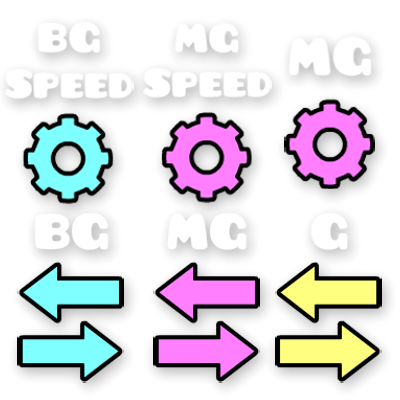
These triggers let you change the BG, MG, and G currently in your level. Their UIs all look somewhat like this when you click :EditObject: Edit Object.
When you click on the button in the middle, you’ll be able to select a new BG, MG, or G for your level. You may also make these triggers Touch or Spawn Triggered of course.
These triggers let you change the speed at which your BG and MG move.
The Mod X and Mod Y values are the same as in the Follow trigger and set the speed of the BG and MG. A value of 1 makes the BG move at the camera’s speed, while a value of 0 makes it stop entirely.
By default these are set to 0.1, but there are other criteria which determine how fast they move - most notably the :TimeWarpTrigger: Timewarp trigger and your speed changes.
You may also change the position of your level’s MG using this trigger. As with the Move trigger you can input an offset, set a move time, and add an easing. As always, this can be Touch and Spawn Triggered.
If you are bored with the backgrounds that GD offers, you can make your own custom ones. I won’t go into detail here as it’s outside of this guide’s scope, but there is another guide here which you can read for that.
 and
komatic5.
and
komatic5.